How to choose an OJS theme: criteria before changing your journal's look
Choosing an OJS theme is not choosing a colour: it is deciding how your journal's articles will be read over the next few years and how much it will cost to maintain that decision every time OJS is updated. These are the criteria we review before changing the appearance: compatibility, plugins, HTML galleys and testing on a copy.
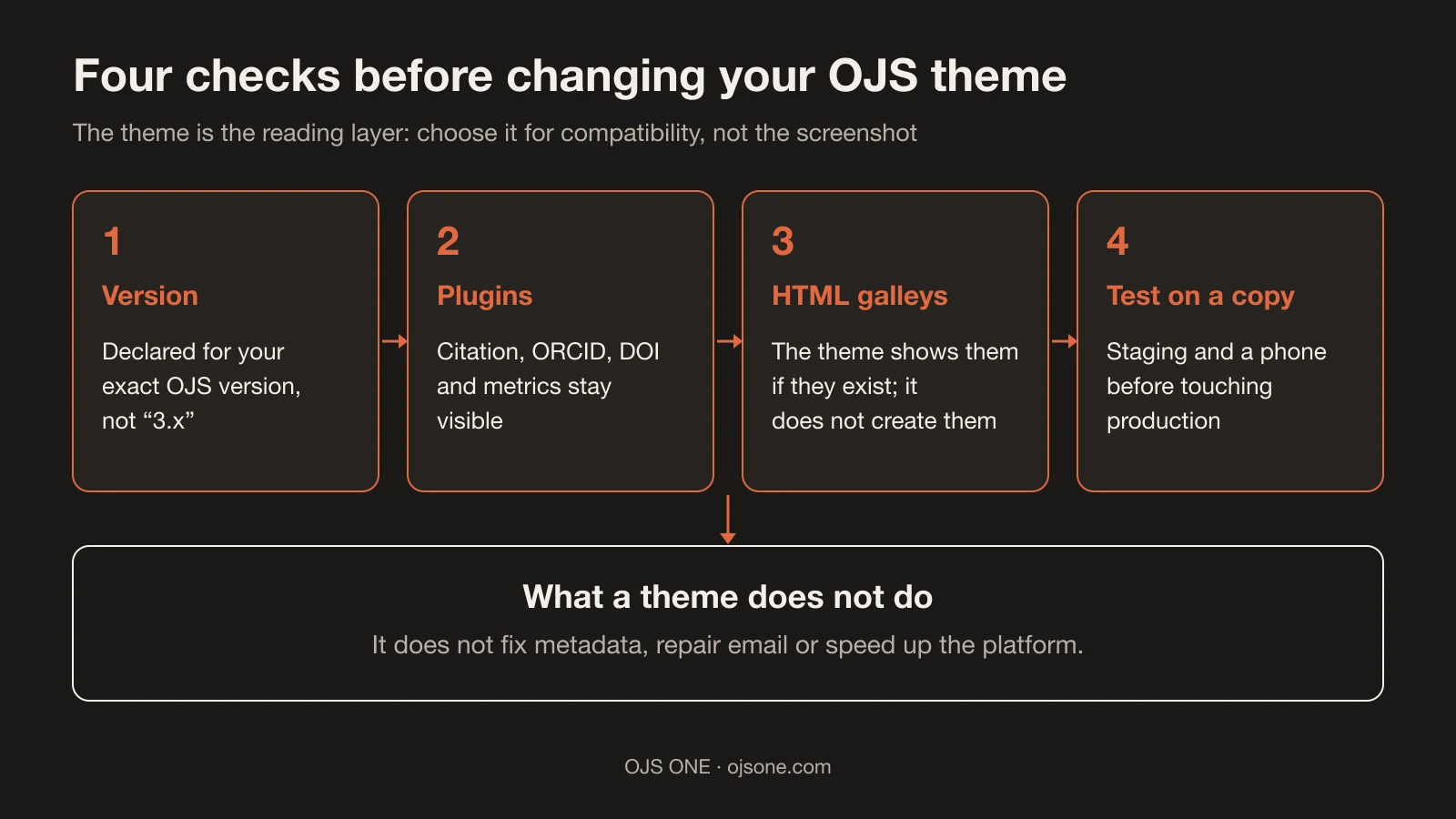
What an OJS theme solves (and what it does not)
A theme controls how the site's pages are presented: home page, tables of contents, article page, search and announcements. It changes typography, colours, layout and, if the theme includes it, how galleys are displayed.
What a theme does not do: it does not fix metadata, it does not produce HTML galleys, it does not repair editorial email and it does not speed up the platform. If your journal has indexing or deliverability problems, changing the theme will not touch them. It is the reading layer, not the engine.
A point people discover late: if the journal only publishes PDF, installing a theme that supports HTML reading does not magically create that reading: if there is no HTML galley, the theme simply has nothing to show on the page. The HTML galley has to exist first.
Criteria for choosing your journal's OJS theme
This is the list we recommend going through, in order of importance:
- Declared compatible version. Every theme is distributed for specific OJS versions. If your journal runs 3.3 and the theme only declares 3.4 and 3.5, it is not the right one, however good the screenshot looks.
- Child theme or standalone theme. If you are going to customize colours or templates, your theme should ideally be a child theme of a base theme, because "A child theme is the best way to make small modifications to an existing theme, without editing that theme's files"1. That way your customizations survive updates to the parent theme.
- Options from the dashboard. Colours, logo, footer and blocks should be configurable in OJS itself under Settings → Website → Appearance. If changing a colour means editing files on the server, every adjustment becomes a project.
- HTML galley reading. This is the criterion we use as a reference in the OJS ONE Editorial theme. Ask directly: does this theme show the HTML galley inside the article page? Ideally it shows it directly on the page, with a navigable table of contents, figures, tables and references, without forcing a PDF download. If your journal only has PDF, this criterion is on hold; if it already produces HTML, making the most of it depends on the theme.
- Compatibility with your plugins. Your journal probably already uses citation, ORCID, DOI or metrics plugins. A theme that rewrites the article page can hide blocks from other plugins. Ask for the list of declared integrations before installing.
- Maintenance and licence. Check who maintains the theme, when its last release was and whether support is charged separately. In today's market it is common for the theme to be free and support to be an annual plan; that is fine, but you should know it before, not after the first error.
- Readability on small screens. Most readers arrive by phone. Test a real article page on a mobile before deciding: text size, overflowing tables and menus that do not collapse matter more than the colour palette.
Compatibility: OJS version, plugins and updates
PKP releases new versions of its software "approximately every 2 years"2, and between those releases it publishes maintenance updates with security fixes. Technically, the theme is just another plugin: it is installed, enabled and versioned together with the platform.
That is why compatibility is not an installation detail but a maintenance commitment:
- Write down your exact OJS version (Administration → System Information) before looking at themes.
- Require the theme to declare its compatible versions; do not accept "works with 3.x" and nothing more.
- If you choose a child theme, your customization depends on the parent theme continuing to be updated.
- Plan the theme update together with the OJS update: when your journal moves from one major branch to another, the theme must be reviewed in the same window, not afterwards.
A real example of why it matters: OJS 3.6, whose first release PKP places in "Fall 2026"3, will bring new production tools and, with them, template changes. Your current theme will need to be ready for those versions when you decide to make the jump; choosing a theme with active maintainers today simplifies that conversation a year from now.
HTML galleys: the reading the theme should make the most of
PKP's direction points to reading the article on the page itself. For OJS 3.6, PKP describes that the generated HTML "can appear inline on the reader-facing side"3, meaning the article text is visible below the abstract, without downloading files.
That is the standard the ecosystem is moving towards, and it can already be used in OJS 3.5 if two conditions are met:
- The journal publishes HTML galleys for each article (not only PDF).
- The active theme knows how to display that galley inside the page.
If the second is missing, the HTML exists but readers still download the PDF. If the first is missing, no theme on the market solves it. In that order: first produce the HTML, then choose the theme that presents it. At OJS ONE we produce those formats from the accepted article with Jatson, and the OJS ONE Editorial theme is our reference for how it should be presented: the article is read in HTML on its own page, with navigable sections, figures, linked citations and connected metadata, and the PDF remains available.
How to test the theme before changing the appearance
The full route, with its preconditions (journal manager or site administrator role, and the theme's .tar.gz file at hand):
- Back up the installation (files and database) before touching anything.
- Upload the theme: Settings → Website → Plugins → Upload a new plugin, choose the .tar.gz file and save.
- Enable it: on the same page, find the Theme Plugins category and tick the theme.
- Select it: Settings → Website → Appearance → Theme, choose it and save.
- Review on a copy (staging), not in production: home page, an article with a PDF galley, an article with an HTML galley if there is one, search, announcements, author and reviewer login, and a pass on a phone.
Checklist before approving the change:
- The home page keeps navigation, announcements and the current issue.
- The article page shows abstract, authors, references and complete galleys.
- Visible plugins (citation, ORCID, metrics) still appear.
- Email and notifications do not depend on the theme (they are a configuration matter, not a template one).
- Search and filters return results with the new design.
- On a small screen, the text is readable and tables do not overflow.
If something fails on the copy, the theme is not ready: it is fixed there, where rolling back is a file, not an afternoon in production.
Common mistakes when choosing a theme
- Editing the parent theme's files to customize it. It is the fast lane to a lost patch at the next update; the child theme exists for exactly that1.
- Changing the theme in production without a backup or a rehearsal copy.
- Deciding only from the demo home page: the demo rarely has your volume of articles, your wide tables or your plugins.
- Assuming the theme "turns on" HTML reading. The galley must exist first.
- Installing a theme that does not declare compatibility with your OJS version.
- Buying theme support without defining who responds outside editorial hours (that is platform support, and it usually lives in a different contract).
Frequently asked questions
Can I change the OJS theme without losing content?
Yes. The theme does not touch articles, issues or metadata: they are separate layers. The real risk is in presentation (what breaks in the templates), and it is controlled by testing on a copy before applying it in production.
How much does an OJS theme cost?
There are free and paid themes, and both coexist in the same ecosystem. The cost that is usually underestimated is not the licence: it is installation, adaptation to your plugins and maintenance whenever OJS is updated. Always ask who maintains the theme and with what response time.
Do I need a new theme for my journal to look good on mobile?
Not necessarily. Many themes already adapt to small screens, but that is checked, not assumed: open a real article on a phone with the theme active and review tables, figures and text size before deciding.
If your journal is considering changing its appearance and wants modern article reading without carrying the theme's maintenance, the OJS ONE Editorial theme offers integrated HTML reading and is installed on top of your current OJS, without migrating the portal, for journals hosted by OJS ONE and together with the operation of the platform. See also our OJS implementation checklist and the training programme for editors and managers if the change comes with a new division of tasks in the team.
Sources
- Sample Child Theme for OJS 3 (PKP). https://github.com/pkp/defaultChild (accessed 16 November 2026).
- PKP Software Releases. https://pkp.sfu.ca/software/releases/ (accessed 16 November 2026).
- Upload, Transform, Publish: Inside OJS 3.6's File Production and Toolset. https://pkp.sfu.ca/2026/07/21/inside-ojs-3-6-file-production-and-toolset/ (accessed 16 November 2026).
OJS ONE Editorial theme
Articles read on the page, not only as PDFs
Integrated HTML reading with navigable sections, figures and connected metadata. Installed on top of your OJS without migrating the portal, for journals hosted by OJS ONE.
- HTML reading inside the article
- The PDF stays available
- No portal migration
OJS ONE Editorial theme
Articles read on the page, not only as PDFs
Integrated HTML reading with navigable sections, figures and connected metadata. Installed on top of your OJS without migrating the portal, for journals hosted by OJS ONE.
See the Editorial theme