
User Manual: Submitting an Article in OJS 3.4
Step-by-step guide to submitting an article in OJS 3.4. Learn how to upload files, complete metadata, add contributors and finish your submission correctly.
1. Access the submissions module
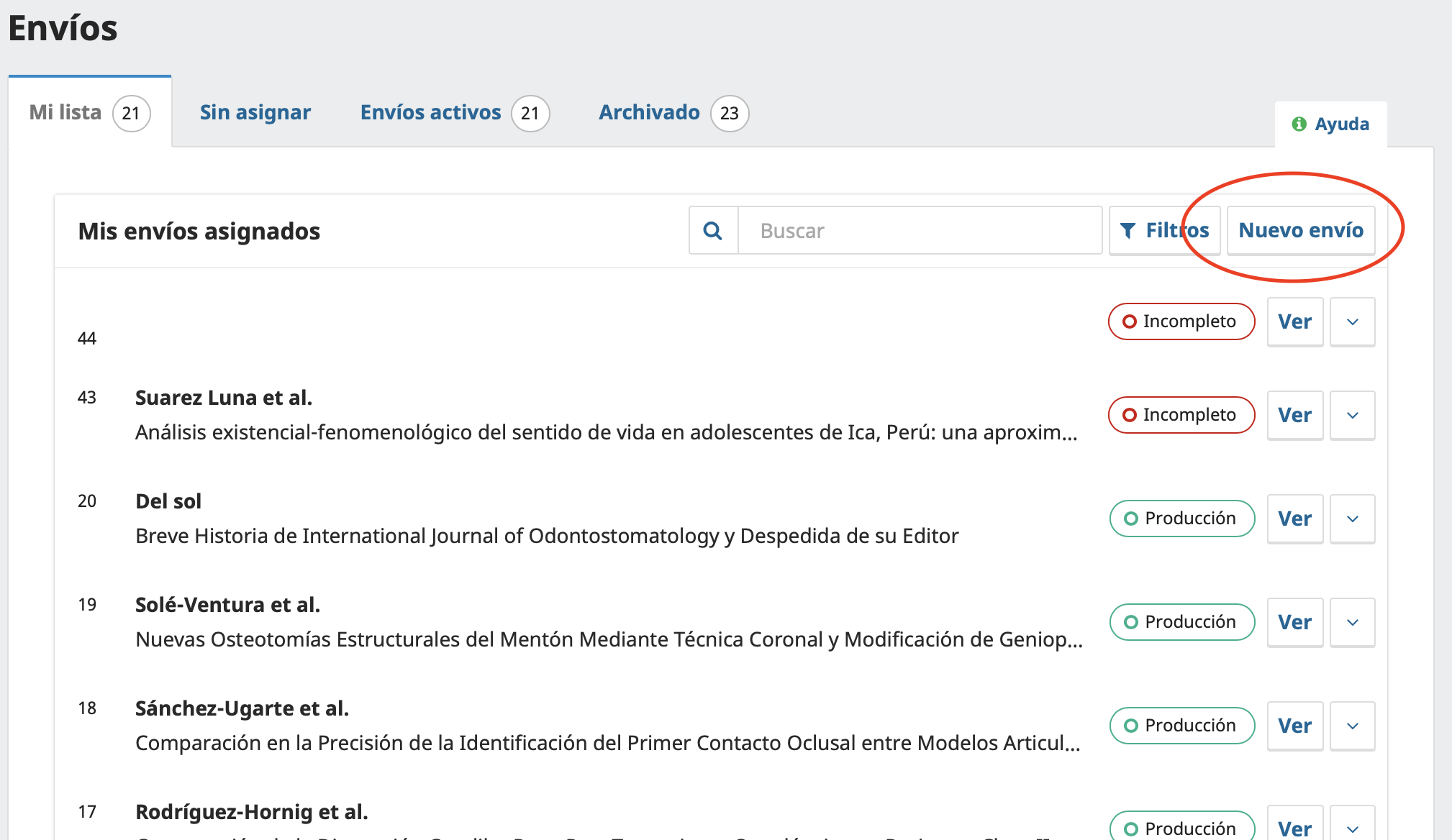
Once the user logs in to the OJS system, they must go to the Submissions menu.
This section shows the tabs My Queue, Unassigned, Active Submissions and Archives.
To start a new submission, click the New Submission button, located at the top right of the screen.
2. Start a new submission
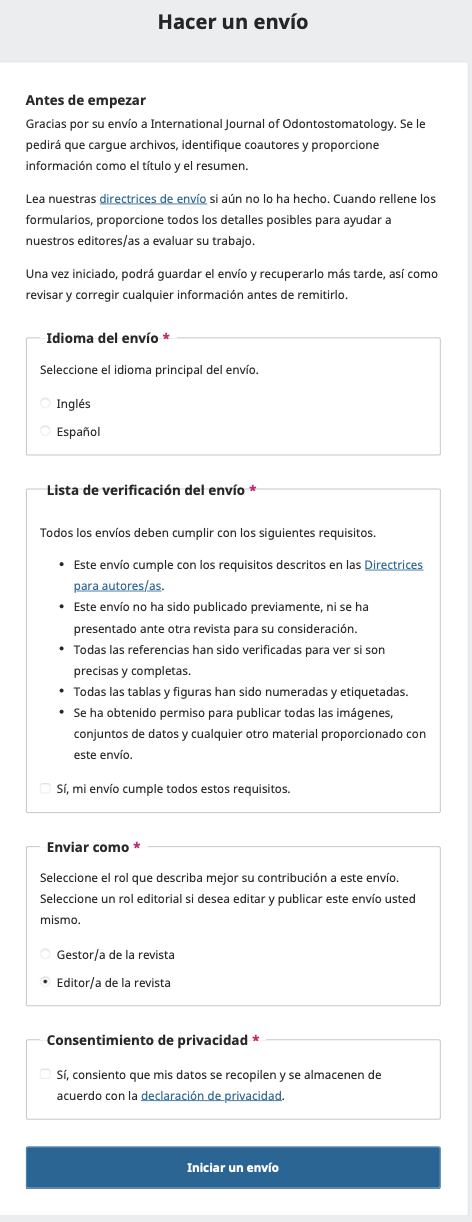
When you select New Submission, OJS shows the Make a Submission screen.
Before you begin, the system asks you to complete the initial submission requirements.
2.1 Select the submission language
The user must select the main language of the article.
2.2 Confirm the submission checklist
The user must review and confirm that the article meets the requirements established by the journal.
You must check the box:
Yes, my submission meets all of these requirements.
2.3 Select the user's role
In the Submit As section, the user must select the role with which they are making the submission.
Once the required fields are completed, click Begin Submission.
3. Step 1: Upload files
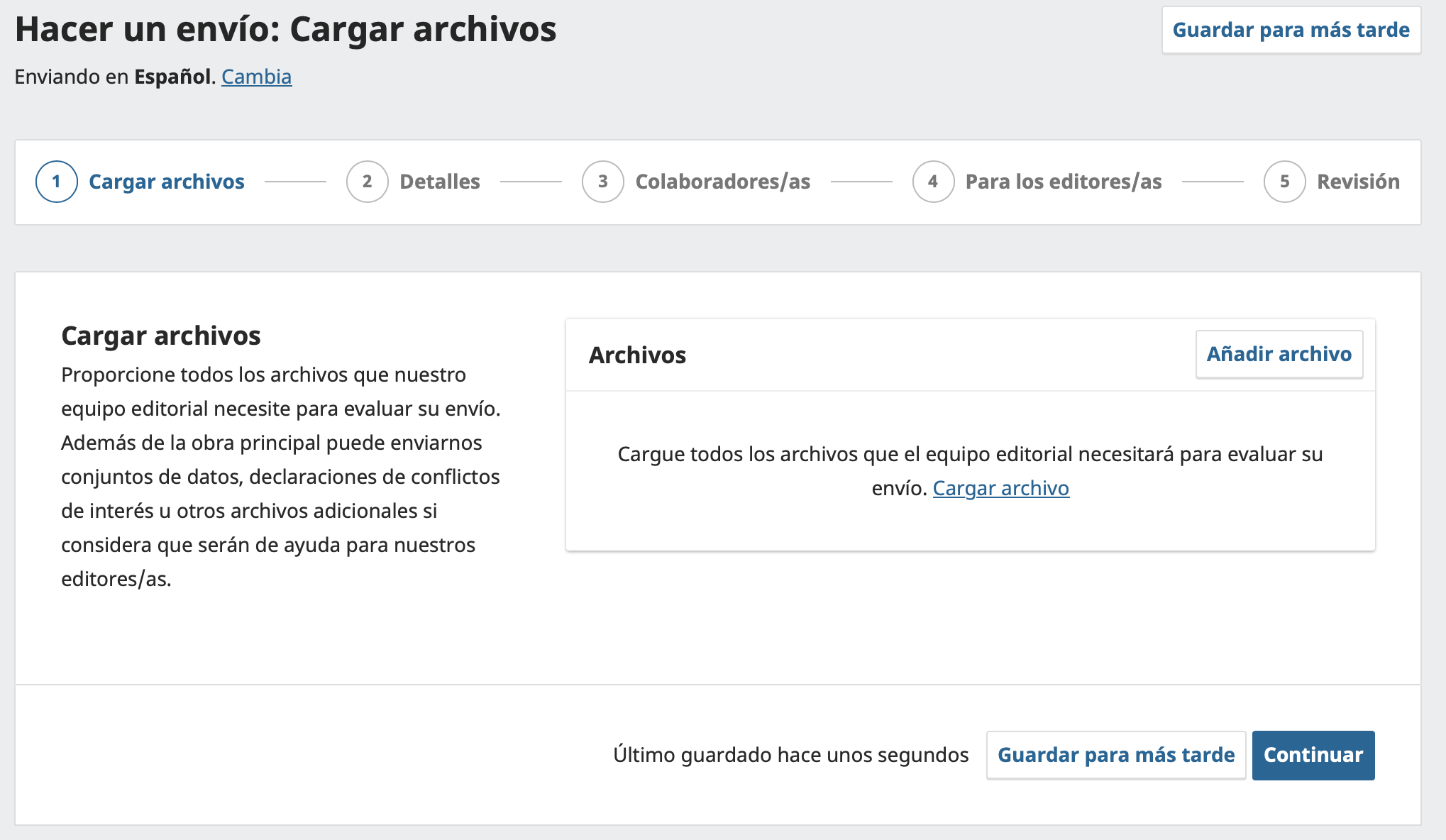
The first step of the submission workflow is Upload Files.
On this screen, OJS asks you to upload all the files the editorial team will need to evaluate the submission.
To upload the manuscript, the user must click Add File or the Upload File link.
The main file must be the text of the article.
Examples of files that can be uploaded:
- Main manuscript.
- Figures.
- Tables.
- Supplementary statements.
- Data files.
- Additional documents requested by the journal.
Once the corresponding file is uploaded, click Continue.
4. Step 2: Submission details
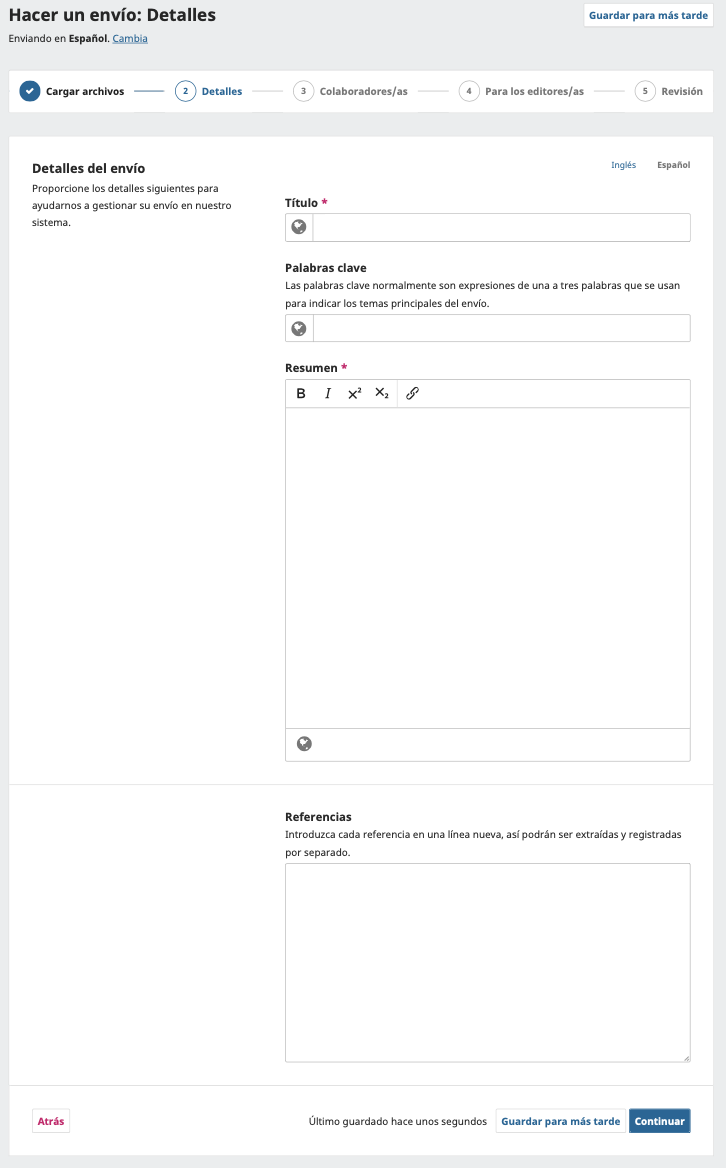
In the second step, OJS asks you to complete the article's main metadata.
This screen corresponds to Make a Submission: Details.
4.1 Title
In the Title field, the user must enter the full title of the article.
This field is required.
4.2 Keywords
In the Keywords field, the user must enter the main terms that describe the content of the article.
4.3 Abstract
In the Abstract field, the user must enter the article's abstract.
This field is required.
The editor allows basic formatting, such as bold, italics, superscript, subscript and links.
4.4 References
In the References section, the user must enter the article's list of bibliographic references.
Each reference must be entered on a new line so that the system can recognize and record them correctly.
Once the required metadata is completed, click Continue.
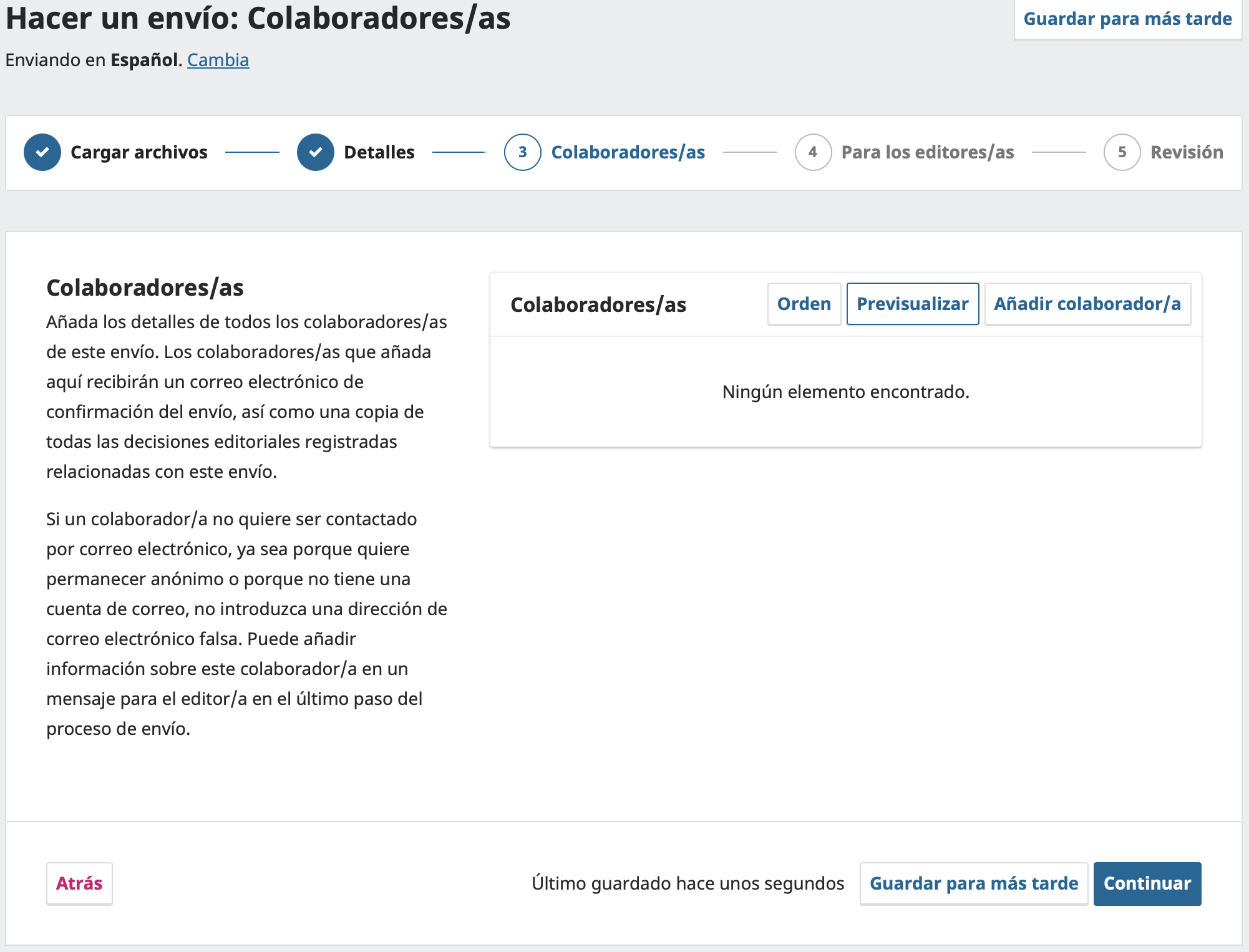
5. Step 3: Contributors
The third step is Contributors.
In this section you must add the details of the authors, co-authors or other participants in the submission.
To register an author or contributor, click Add Contributor.
The Order button lets you organize the order in which the contributors will appear in the article.
The Preview button lets you review how the contributors will be displayed before continuing.
When the contributors have been added correctly, click Continue.
6. Step 4: For the Editors
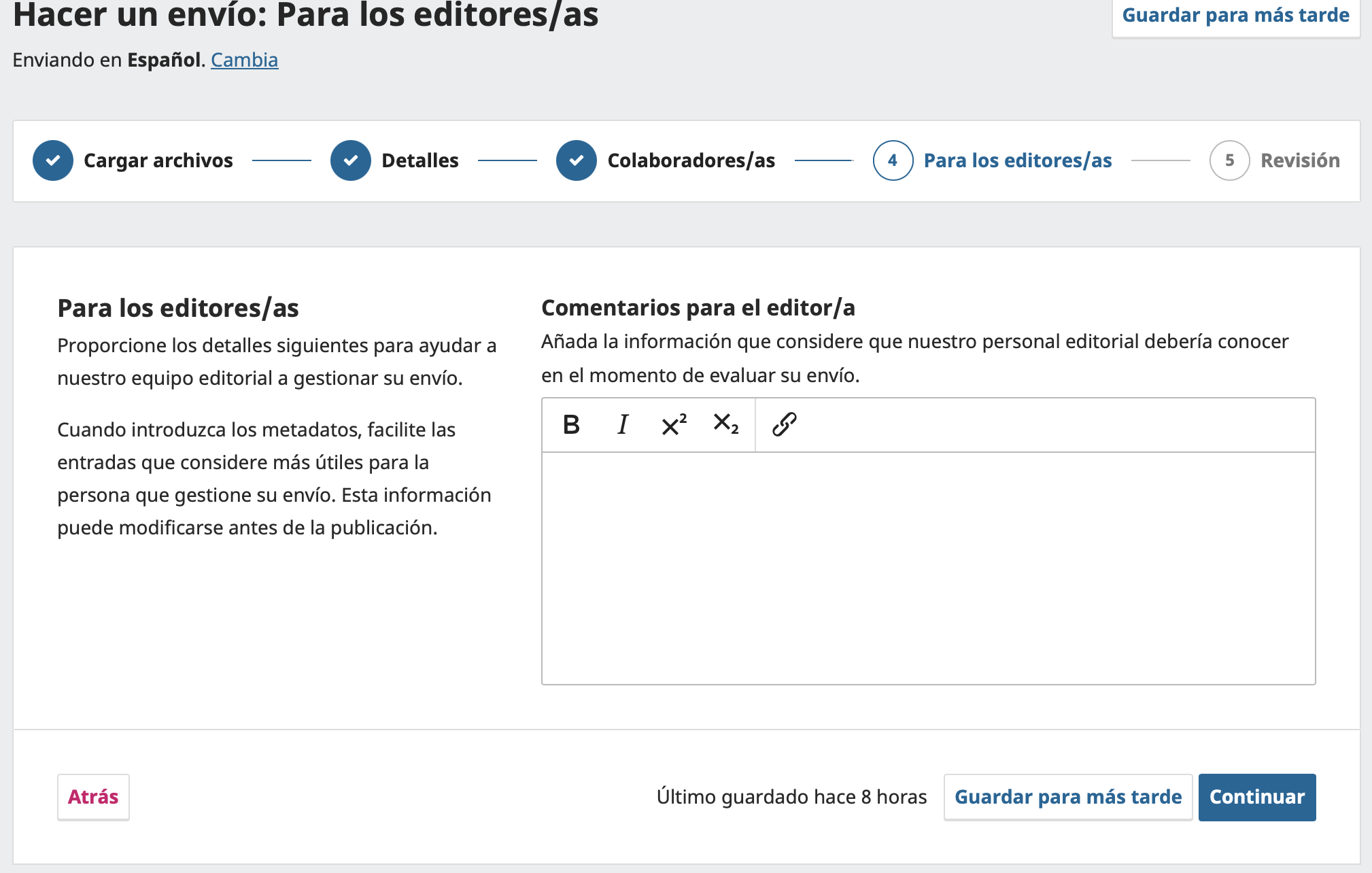
The fourth step is For the Editors.
In this section, the user can enter comments addressed to the editorial team.
The Comments for the Editor field lets you add additional information that may be useful for evaluating the submission.
Examples of information that can be included:
- Clarifications about the manuscript.
- Information about supplementary files.
- Comments on data availability.
- Statements relevant to the editorial process.
- Notes on conflicts of interest, if applicable.
This field can be left empty if the journal does not require additional comments.
Once this section is completed, click Continue.
7. Step 5: Review
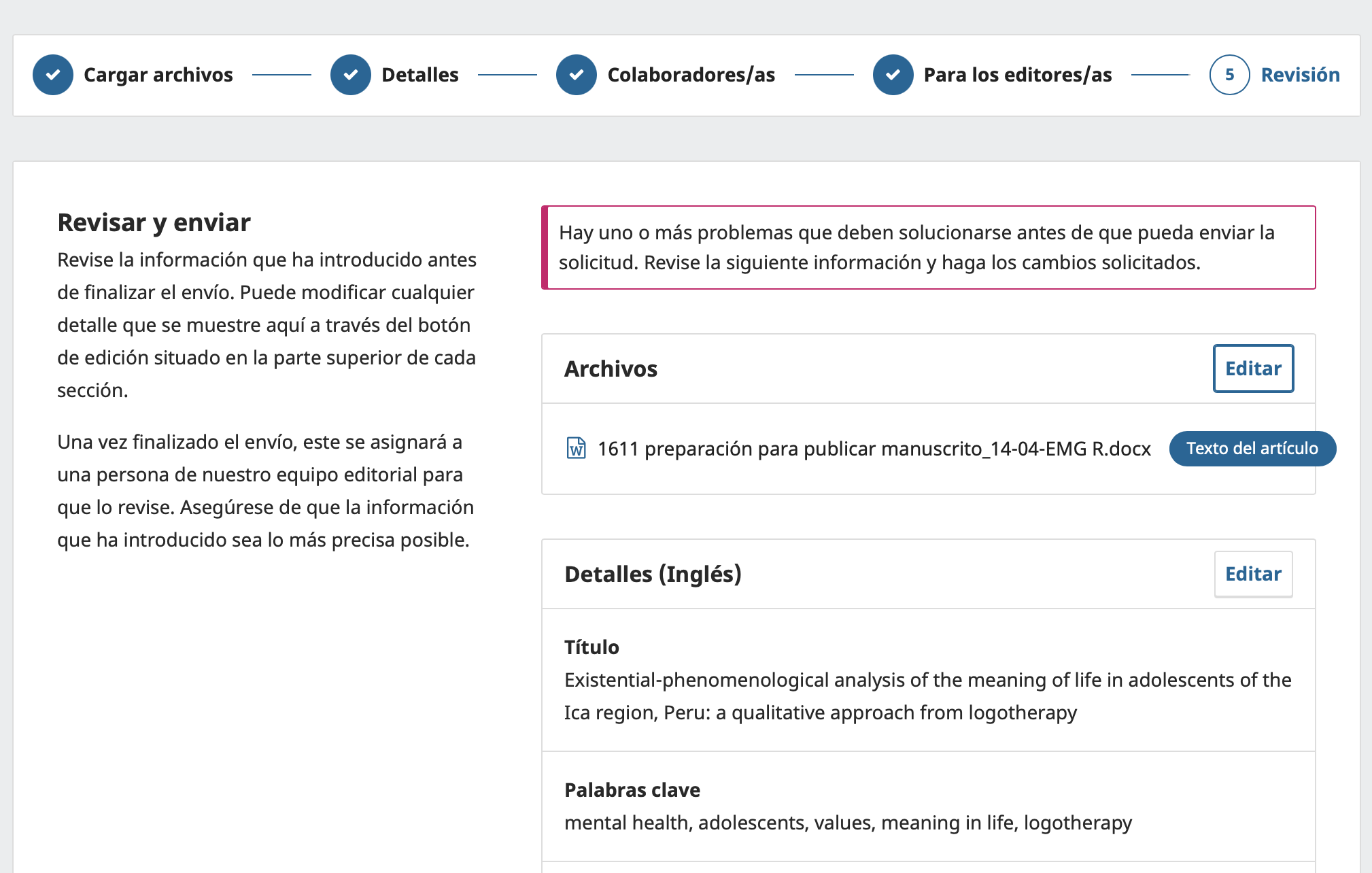
The last step is Review.
On this screen, OJS shows a summary of the information entered before you finish the submission.
If required information is missing, the system will show a warning.
For example:
There are one or more problems that must be fixed before you can submit.
In that case, OJS will indicate which section needs to be corrected.
Example:
You must upload at least one Article Text file.
Each block of the summary may have an Edit button, which lets you return to the corresponding section to correct or complete information.
8. Finish the submission
When all the required fields are complete and there are no pending warnings, the user will be able to finish the submission.
Before submitting, we recommend checking that:
- The main article file was uploaded correctly.
- The title is complete.
- The abstract was entered.
- The keywords are recorded.
- The references were added.
- The authors and contributors are in the right order.
- The comments for the editor, if any, are clear and relevant.
Once everything has been reviewed, confirm the submission from the final screen.
9. Save for later
During the submission process, OJS lets you save your progress with the Save for Later button.
This option lets you temporarily suspend the submission and resume it later from the user's account.
The system may also show messages such as:
Last saved a few seconds ago
This indicates that the progress has been saved correctly.
10. Summary of the submission workflow
The submission process in OJS 3.4 consists of five main steps:
- Upload Files
- Details
- Contributors
- For the Editors
- Review
The submission can only be finished when all the required fields are complete and there are no pending errors.
Is your journal struggling with slow performance or recurrent outages?
Contact our team and see how enterprise-grade infrastructure can transform your editorial operation.
Request assessment