
User Manual: Editorial Review in OJS 3.4
Practical guide to managing the review stage in OJS 3.4, reading peer evaluations and making informed editorial decisions.
The review stage in OJS 3.4 is the space where the editor manages peer review, consults the reviewers' responses and defines the manuscript's next editorial step. At this stage, the reviewer's recommendation guides the process, but the final decision always belongs to the editorial team.
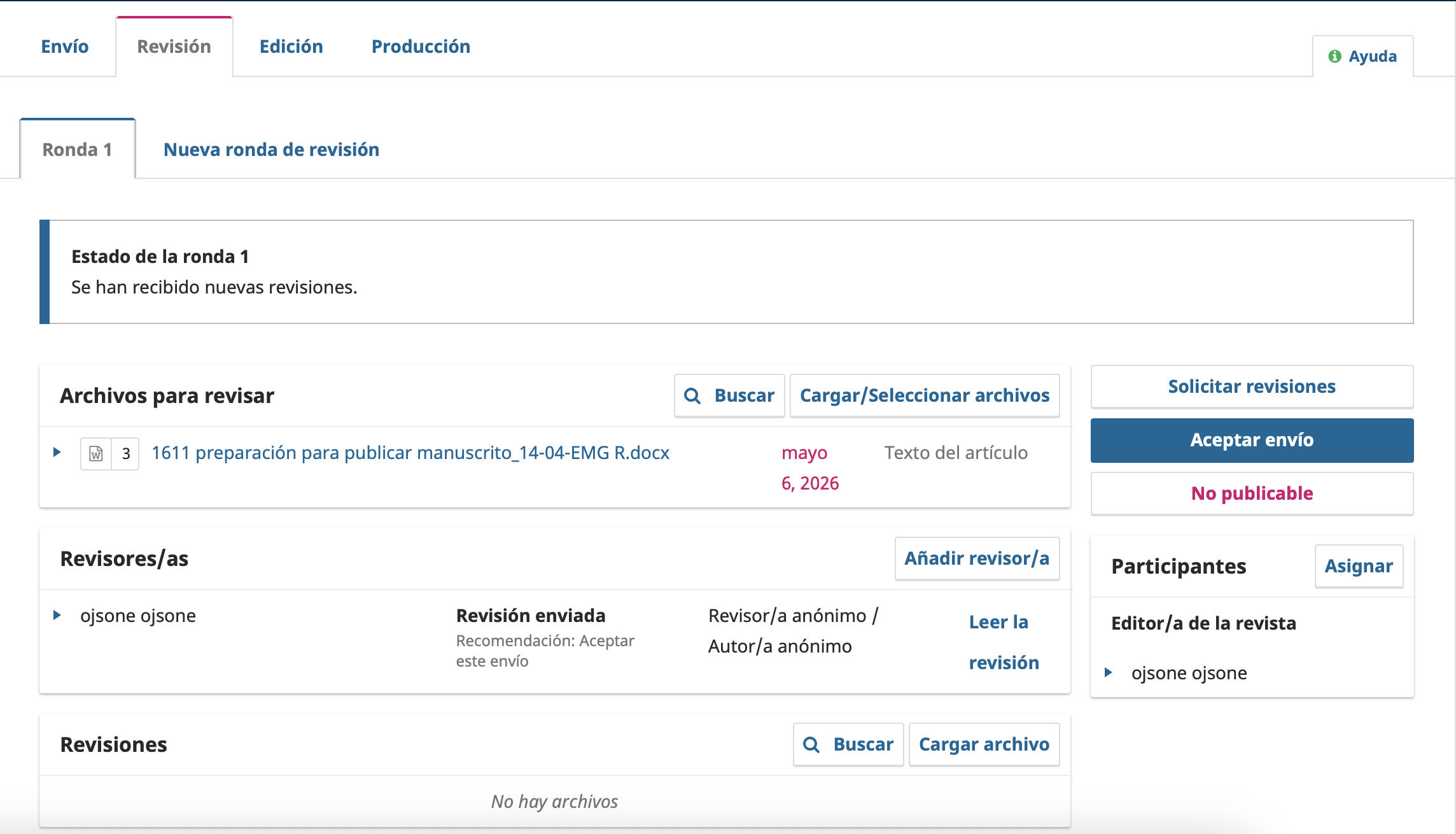
The following image shows the Review tab of the OJS 3.4 editorial workflow.
1. What is the review stage in OJS?
The Review stage is the phase of the editorial workflow in which the manuscript is submitted to peer review. From this screen, the editor can:
- See the active or closed review rounds.
- Check the status of the evaluations received.
- Review the files sent to reviewers.
- Open and read each review report.
- Request revisions from the author.
- Accept or reject the submission editorially.
- Start a new review round if the process requires it.
This stage begins after the editorial pre-review and ends when the manuscript moves to Copyediting, is rejected or goes back to the author for revisions.
2. Location of the screen
In OJS 3.4, the editorial workflow is organized into two visible levels:
2.1. Main level
- Workflow
- Publication
2.2. Stages within the workflow
- Submission
- Review
- Copyediting
- Production
In this manual, the active tab is Review, which indicates that the manuscript is already in peer review or at an editorial decision following that review.
3. Main elements of the screen
3.1. Review rounds
Below the main tabs, the navigation by rounds appears, for example:
- Round 1
- New Review Round
The Round 1 tab corresponds to the first round of evaluation of the manuscript.
The New Review Round option lets you open a new evaluation cycle when:
- the manuscript was revised by the author;
- new expert opinions are needed;
- the editor needs to confirm that the requested changes were resolved;
- the journal works with several rounds before deciding on final acceptance.
3.2. Round status
The status box reports the current situation of the review process.
On a screen like the one shown, OJS may display messages such as:
New reviews have been received.
This means that one or more reviewers have already submitted their evaluation and that the editor must review that content before making a decision.
Other possible statuses may include pending rounds, invitations without a response or reviews not yet received.
3.3. Files for review
The Files for Review section shows the manuscript or the documents that are part of the evaluation.
If the journal uses double-blind review, this section is critical: the Word file that appears here is the document that will be made available to the reviewers, so its anonymization is the direct responsibility of the editor or the editorial team managing the round.
For the purposes of this manual, it can be understood as a main file such as:
manuscrito_articulo.docx
This section normally displays data such as:
- file name;
- upload or update date;
- file type, for example Article Text;
- actions such as Search or Upload/Select Files.
What the editor should check
Before deciding on the manuscript, the editor must confirm:
- That the file being evaluated corresponds to the right version.
- That an outdated version of the manuscript is not being used.
- That the necessary supplementary files are available if the evaluation requires them.
- That the version sent for review keeps its anonymization, if the journal uses blind review.
- That the Word document does not include author names, affiliations, identifiable acknowledgments, file properties or other references that make it possible to recognize the authorship.
Editorial responsibility in double-blind review
In double-blind review, it is not enough to assume that the author uploaded a correct file. The editor must actively verify that the document available in Files for Review is the anonymized version that will actually be sent to the reviewer.
Before continuing with the round, it is worth checking at least:
- the cover or first page of the manuscript;
- headers and footers;
- acknowledgments or notes to the author;
- references to projects, institutions or datasets that identify the author;
- comments visible in the file;
- the properties of the Word document, if the journal requires stricter control.
3.4. Reviewers
The Reviewers section presents the information on the people invited or assigned to the round.
In a view like this you can see elements such as:
- reviewer name or identifier depending on the system configuration;
- review status, for example Review submitted;
- the reviewer's editorial recommendation;
- anonymity mode used;
- available action: Read Review.
Editorial interpretation
The reviewer's recommendation may be favorable, conditional or negative. For example:
- accept;
- request minor revisions;
- request major revisions;
- resubmit for review;
- decline.
The recommendation guides the decision but does not replace it. The editor must always read the full content of the report before acting.
3.5. Participants
The Participants section also appears in the side panel.
There you can verify which users are involved in managing the submission, for example:
- journal editor;
- section editor;
- editorial assistant;
- another user with responsibilities in the workflow.
The Assign button lets you add participants if the journal needs to distribute the editorial management of the manuscript.
3.6. Editorial decisions
At this stage, OJS shows the actions the editor can take on the submission.
Among the most common options are:
- Request Revisions
- Accept Submission
- Decline Submission
These actions change the status of the submission and trigger the corresponding communication with the author.
3.7. Reviews section and associated files
At the bottom or within the detail of each review, attached files or documents reviewed by the evaluators may appear.
If the interface says:
No files.
it means no additional documents were uploaded in that section. The editor must nevertheless check whether there are text comments within Read Review.
4. Reading the review properly
The Read Review button is one of the most important points of this stage.
Before making an editorial decision, the editor must review:
- the comments addressed to the editor;
- the comments addressed to the author;
- the recommendation selected by the reviewer;
- the existence of attached files with corrections;
- the consistency between the recommendation and the argument given;
- whether the report contains methodological, ethical or formal remarks.
It is not advisable to accept, reject or return a manuscript without first reading the full review.
5. Available editorial decisions
5.1. Request revisions
This option is used when the manuscript requires changes before continuing.
It should be considered when:
- the article needs minor or major corrections;
- the reviewer reports remarks that can be fixed;
- the editor considers that the text is not yet ready for copyediting;
- a new version of the manuscript from the author is required.
When this option is selected, OJS normally prepares a notification to the author and returns the submission for adjustments.
5.2. Accept submission
This option lets you approve the manuscript so that it moves on to the next stage of the editorial workflow.
It should be used when:
- the review is favorable;
- the manuscript meets the journal's editorial criteria;
- no substantive remarks are left pending;
- the editor confirms that the article can move on to Copyediting.
Accepting a submission should not be based solely on a brief recommendation. There must be consistency among the reports received, the journal's editorial policy and the editor's decision.
5.3. Decline submission
This option is used to reject the manuscript.
It should be considered when:
- the article does not meet the journal's criteria;
- the reviews recommend rejection with clear grounds;
- there are severe methodological, ethical or editorial problems;
- the manuscript should not continue in the editorial workflow.
This decision should be taken carefully and leave a clear justification for the communication to the author.
6. Recommended procedure for the editor
Step 1: Confirm that the active tab is Review
Verify that the active tab is Review.
This confirms that you are working within the peer review and editorial decision stage.
Step 2: Review the active round
Confirm whether you are in Round 1 or a later round.
This is important to understand whether it is the manuscript's first evaluation or a second review after revisions.
Step 3: Review the round status
Check whether there are reviews received, pending invitations or tasks still open.
If the system indicates that new reviews have been received, the next step is to open and analyze them.
Step 4: Verify the evaluated file
Review the Files for Review section.
You must confirm that the file corresponds to the right version of the manuscript, that there is no confusion with files from earlier rounds and that, in double-blind review, that Word file is actually free of references to the author before it is sent to the reviewer.
Step 5: Open and read the submitted review
Click Read Review.
Review the comments in detail before acting.
Step 6: Compare recommendation and arguments
Do not base the decision solely on the recommendation selected by the reviewer.
Verify that the comments provided really support the final recommendation.
Step 7: Check whether a new round is needed
If the article requires major changes or new verification by peers, assess whether it is appropriate to open a New Review Round after the author's response.
Step 8: Make an editorial decision
Select one of the available options:
- Request Revisions if the author must correct the manuscript.
- Accept Submission if the article can move on to copyediting.
- Decline Submission if the manuscript must be rejected.
Step 9: Review the communication to the author
OJS will let you prepare or review the editorial message associated with the decision.
Before sending it, confirm that:
- the message is clear;
- the decision is consistent with the reports;
- the instructions to the author are precise, if changes are requested.
7. Editorial review checklist
| Check | Status | Notes |
|---|---|---|
| The active tab corresponds to Review | Pending | |
| The correct round was identified | Pending | |
| Reviews were received or the status was verified | Pending | |
| The evaluated file corresponds to the right version | Pending | |
| The Word document was checked to ensure anonymization in double-blind review | Pending | |
| The full review was read | Pending | |
| The reviewer's recommendation was compared with their comments | Pending | |
| It was verified whether there are attached review files | Pending | |
| The editorial decision is consistent with the evidence reviewed | Pending | |
| The message to the author was reviewed before sending | Pending | |
| It was assessed whether a new round should be opened | Pending |
8. Editorial best practices
- Always read the full report before deciding.
- Do not base the decision only on the reviewer's short recommendation.
- Confirm which version of the manuscript is being evaluated.
- In double-blind review, personally verify that the Word file sent to reviewers does not reveal authorship.
- Keep the decisions traceable within OJS.
- Request a new round when the changes call for new verification.
- Carefully review the message that will be sent to the author.
- Keep consistency between the journal's editorial policy and the decision taken.
9. Expected result of this stage
At the end of the review stage, the submission should be in one of these situations:
- Accepted for copyediting, if the editor selects Accept Submission.
- Returned to the author for revisions, if the editor selects Request Revisions.
- Rejected, if the editor selects Decline Submission.
- In a new review round, if the process requires a new evaluation after the changes.
The right decision depends on the content of the reviews received, the journal's editorial judgment and the evaluation policy used.
10. Suggested message to request revisions from the author
Dear author,

We have reviewed the evaluation reports for your manuscript.

To continue with the editorial process, we ask you to address the remarks indicated by the reviewers and by the editorial team.

Please upload a new corrected version of the manuscript and, where applicable, respond to the main comments received.

Once the revised version is received, we will assess whether the submission can move forward or requires a new round of review.

Sincerely,
Editorial team
11. Suggested message to record an editorial acceptance
Editorial review completed.

The evaluation reports have been reviewed and the manuscript meets the criteria needed to move on to the copyediting stage.

We recommend accepting the submission.
12. Operational summary
The Review screen in OJS 3.4 lets the editor control six key elements:
- Review round: identify which evaluation cycle the manuscript is in.
- Round status: confirm whether reports are already available.
- Files for review: verify the right version of the manuscript.
- Reviewers: check status, recommendation and access to each report.
- Editorial decisions: select the next step in the workflow.
- Editorial communication: make sure the decision sent to the author is clear and consistent.
A well-executed editorial review improves the quality of the final decision, reduces workflow errors and keeps the peer review process traceable.
Is your journal struggling with slow performance or recurrent outages?
Contact our team and see how enterprise-grade infrastructure can transform your editorial operation.
Request assessment