
User Manual: Editorial Pre-review in OJS 3.4
Practical guide to carrying out the editorial pre-review of a submission in OJS 3.4 before assigning it to peer review.
Editorial pre-review is the initial check the journal team carries out before sending a manuscript to peer review. Its goal is to confirm that the submission is complete, meets the minimum requirements and can move forward without creating rework for reviewers or for the editorial team.
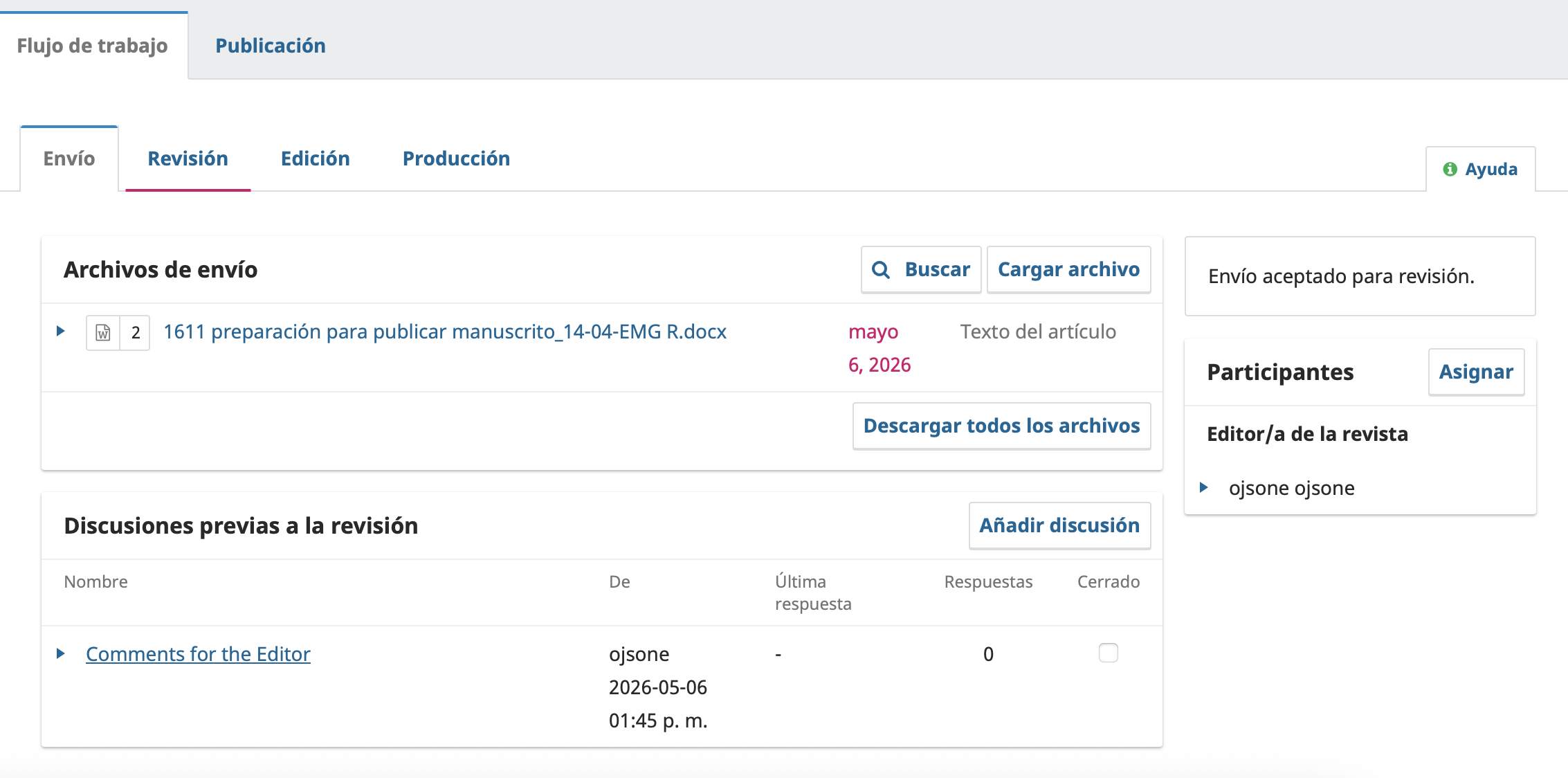
The following image shows the Submission tab of the OJS 3.4 editorial workflow, for a submission whose status indicates it has already been accepted for review.
1. What is pre-review in OJS?
Pre-review is the initial editorial review carried out after receiving a manuscript and before formally sending it to peer review.
At this stage, the editorial team verifies that the submission meets the journal's minimum requirements. The scientific quality of the article is not yet evaluated in depth; the goal is to confirm that the manuscript is ready to enter the review process.
Pre-review makes it possible to detect problems such as:
- Incorrect or incomplete file.
- Insufficient metadata.
- Non-compliance with author guidelines.
- Lack of anonymization, when the journal uses blind review.
- Relevant author comments that must be taken into account.
- The need to return the submission to the author before sending it to reviewers.
2. Location of the screen
In OJS 3.4, the editorial workflow is organized into two visible levels:
2.1. Main level
- Workflow
- Publication
2.2. Stages within the workflow
- Submission
- Review
- Copyediting
- Production
The screen shown corresponds to the Submission tab, at a point when the manuscript's status already indicates that it was accepted for review. In other words, the status and the visible tab are not necessarily the same thing.
3. Main elements of the screen
3.1. Submission files
The Submission Files section shows the documents the author uploaded during the submission process.
The image shows a Word file. For the purposes of this manual, it can be understood as a main manuscript uploaded by the author, for example:
manuscrito_articulo.docx
The file is classified as:
Article Text
Available actions
- Search: lets you search for files within the submission.
- Upload File: lets you add a new file to the submission.
- Download All Files: lets you download all the documents associated with the submission.
What the editor should check
Before sending the manuscript to peer review, the editor should verify:
- That the main article file is uploaded correctly.
- That the file is readable and corresponds to the submitted manuscript.
- That the file type is correct, for example, Article Text.
- That no appendices, tables, figures or other documents required by the journal are missing.
- That the file does not contain authorship information if the journal uses double-blind review.
- That the document meets the minimum format requested by the journal.
3.2. Submission status
The right-hand panel shows the status:
Submission accepted for review.
This means the submission has passed the initial reception phase and was moved to the review stage. However, this does not mean the article has been accepted for publication.
The status only indicates that the manuscript can move forward to editorial evaluation or to peer review.
3.3. Participants
The Participants section shows the people associated with the submission.
The image shows the role:
Journal Editor
And a user assigned to the editorial workflow is shown, for example:
First Last Name
Available action
The Assign button lets you add participants to the editorial workflow, for example:
- Section editor.
- Editorial assistant.
- Copyeditor.
- Layout editor.
- Another user with an editorial role.
Operational recommendation
Before sending to peer review, it must be clear who is responsible for the submission. If the manuscript will be handled by a section editor, they should be assigned at this stage.
3.4. Pre-Review Discussions
The Pre-Review Discussions section lets you keep internal communications or conversations with the author before starting peer review.
The image shows a discussion associated with the submission, for example:
Comments for the Editor
This discussion contains comments sent by the author during the submission process.
Visible columns
The table includes the following columns:
- Name: title of the discussion.
- From: user who started or took part in the discussion.
- Last Reply: date or status of the last reply.
- Replies: number of replies recorded.
- Closed: checkbox to indicate whether the discussion was closed.
Available action
The Add discussion button lets you create a new conversation related to the submission.
It can be used to:
- Request a corrected file before evaluation.
- Ask for missing information.
- Leave internal instructions for the editorial team.
- Record the editor's observations.
- Coordinate technical aspects before assigning reviewers.
4. Recommended pre-review procedure
Step 1: Confirm that the submission is at the right stage
Verify that the active tab is Submission.
From this view you can carry out the initial editorial check of the submission and verify the information needed before continuing with the management of peer review.
Step 2: Review the submission files
Go to Submission Files and review the main file.
You must confirm:
- That the document opens correctly.
- That the manuscript corresponds to the submitted article.
- That it is not the wrong version.
- That the file is not damaged.
- That the format is compatible with the journal's editorial workflow.
- That the document is anonymized if applicable.
If there are several files, check that all of them are correctly classified.
Step 3: Download the manuscript
Use the Download All Files option if you need to review the complete submission package.
You can also open or download the main file individually from the list of files.
Downloading lets you carry out a basic editorial review outside OJS, especially to check format, structure, tables, figures, references and authorship data.
Step 4: Review the author's comments
Open the discussion recorded for editorial comments or earlier messages on the submission.
There may be instructions, clarifications or warnings sent by the author there.
Examples of relevant information:
- Conflict of interest statement.
- Explanation about supplementary files.
- Special request to the editor.
- Clarification about authorship.
- Remarks about the review process.
These comments must be taken into account before assigning reviewers.
Step 5: Verify assigned participants
Review the Participants section.
There must be at least one editor responsible for the submission. If an owner is missing or another member of the editorial team needs to be added, use the Assign button.
This action is important to prevent the submission from being left without follow-up.
Step 6: Review metadata and basic editorial compliance
Even if the submission's status indicates it was accepted for review, on this screen it is also worth confirming that the submission has enough information to move forward.
Check at least the following:
- That the article title is complete.
- That the abstract and keywords are present, if the journal requires them from the start.
- That the references are recorded or included according to the editorial policy.
- That the manuscript falls within the journal's subject scope.
If you detect important gaps, the submission can be returned to the author before moving on to peer review.
Step 7: Request prior corrections if necessary
If the file has formal problems, it is not advisable to send it immediately to peer review.
In that case, create a discussion using Add discussion and ask the author for a prior correction.
Frequent cases:
- The manuscript contains author names in double-blind review.
- A required statement is missing.
- The file does not follow the journal's template.
- The references are incomplete.
- Tables, figures or appendices are missing.
- The uploaded file does not correspond to the article.
Step 8: Decide whether the submission can move on to peer review
After the initial review, the editor must decide whether the submission is ready to be sent to reviewers.
It can move forward if:
- The main file is correct.
- The metadata is sufficient.
- The submission meets the journal's basic rules.
- There are no anonymization problems.
- No required documents are missing.
- The manuscript falls within the journal's scope.
It should not move forward if:
- The file is incomplete.
- The document does not correspond to the submission.
- Elements required by the journal are missing.
- There are serious format problems.
- The manuscript reveals authorship in a double-blind process.
- The topic is clearly outside the editorial scope.
5. Editorial pre-review checklist
Use this list before sending the manuscript to peer review.
| Check | Status | Notes |
|---|---|---|
| The main file was uploaded correctly | Pending | |
| The file corresponds to the submitted manuscript | Pending | |
| The file type is correctly classified | Pending | |
| The document can be opened without errors | Pending | |
| The manuscript meets the template or minimum format | Pending | |
| Tables, figures or appendices are present | Pending | |
| The text is anonymized if applicable | Pending | |
| The author's comments were reviewed | Pending | |
| A responsible editor is assigned | Pending | |
| The submission's basic metadata is complete | Pending | |
| No required documents are missing | Pending | |
| The submission is within the journal's scope | Pending | |
| The submission can move on to peer review | Pending |
6. Best practices for the editorial team
- Do not send manuscripts with obvious formal problems to peer review.
- Use the pre-review discussions to keep a record of every request to the author.
- Keep a clear editorial owner assigned to each submission.
- Download and review the file before assigning reviewers.
- Confirm the anonymization of the file if the journal uses double-blind review.
- Avoid informal corrections outside OJS; the system should keep the editorial history.
- Classify files correctly to ease the later copyediting and production stages.
7. Expected result of the pre-review
At the end of this stage, the editor should have one of these decisions:
- Send the manuscript to peer review. The submission meets the minimum requirements and can be assigned to reviewers.
- Request prior corrections from the author. The submission has problems that can be fixed before evaluation.
- Reject editorially before external review. The submission is outside the journal's scope or fails basic criteria that cannot be remedied.
8. Suggested message to request prior corrections
Dear author,

Greetings. We have carried out the initial review of your submission before sending it to peer review.

To continue with the editorial process, we ask you to correct the following aspects:

- [State correction 1]
- [State correction 2]
- [State correction 3]

Once the corrected version is uploaded to the platform, the editorial team will review the submission again to determine whether it can move forward to evaluation.

Sincerely,
Editorial team
9. Suggested message to record an internal decision
Initial editorial review completed.

The main file was reviewed and the submission meets the minimum requirements to move forward to peer review.

We recommend continuing with the assignment of reviewers.
10. Operational summary
The pre-review screen in OJS 3.4 lets the editor control four critical elements before starting peer review:
- Submission files: verify that the manuscript and associated documents are correct.
- Participants: confirm that there is an assigned editorial owner.
- Pre-review discussions: review the author's comments and record communications before the review.
- Basic metadata: confirm that the submission's information is sufficient to move forward.
A well-executed pre-review reduces errors, saves reviewers' time and improves the traceability of the editorial process.
Is your journal struggling with slow performance or recurrent outages?
Contact our team and see how enterprise-grade infrastructure can transform your editorial operation.
Request assessment